
This guide introduces the default settings and less obvious functions in Gesture Albums. If you need more detail, send feedback through the app and I will update this article.
This guide uses the iOS interface as its example. iPadOS works similarly, while Mac uses keyboard shortcuts. On iPhone Duo, the guide and organizing toolbar adapt to the inner and cover screens.
Photo Operations
It is recommended to select all when request access to the photo library.
Although the application can still work after selecting the part, it will not be so convenient to run.
The display order of photos (videos, screenshots, etc.) is in chronological order, from new to old. That is, the priority display of recent shots.
The classification statistics of photos, etc. do not include hidden photos and burst photos of users.
This is because compared with general photos and favorite photos, photos set to hide are more favorite and private photos for users. Therefore, it is more appropriate for users not to delete hidden photos by default.
As for burst photos. It belongs to many similar photos. It’s not so appropriate to deal with it with gestures. It is more convenient to process it directly in the photo application. However, if you think it is necessary, you can give feedback.
Press the change button on the upper right corner to choose a specified album.
There are three display states in the category, corresponding to text, numbers and percentages respectively.
This percentage is the ratio of an unorganized type of photos to the total number of such types of photos. That is, it is 100% when it is not sorted out at all, and it is 0 after it is sorted out, and it is not displayed at 0.
There are two display states, numbers and percentages, to reset the organized history.
Reset will reset all classifications that have been organized out to 0, and a classification cannot be reset separately. However, if it is currently an album, only the album will be reset.
When classifying and editing, both gestures and shortcut keys are supported.
iPhone and iPad can also use keyboard shortcuts by connecting an external keyboard.
Explanation diagram:
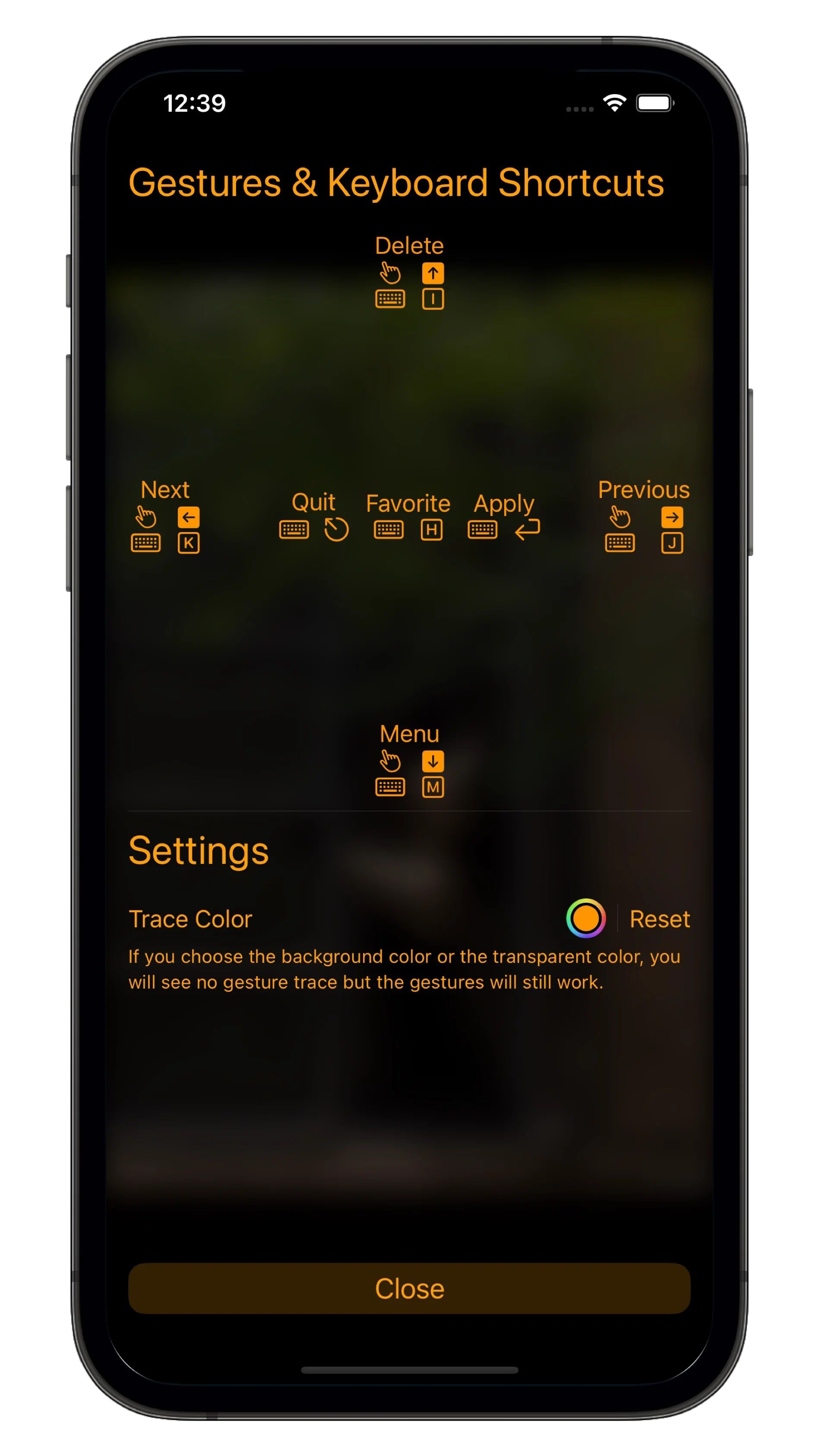
The hand icon and keyboard icon represent the gesture or the keyboard respectively, followed by the gesture direction and keyboard shortcut.
The reason why keyboard keys use IJKM instead of arrow keys is that iOS and iPadOS may not be able to detect arrow keys.
macOS can simulate gestures by holding down the left mouse button and dragging. However, macOS recommends using the keyboard.
The three operations in the middle only support keyboard shortcuts and touch click operations, and do not support gestures.
Organize and delete actions stay pending until you tap Apply. Close asks what to do if there are unapplied changes.
Setting and canceling favorites, setting or removing the album is effective immediately.
The toolbar layout varies with the device and available width. Organize and Delete show the number of pending actions. Tap Total to see the total, organize, and delete counts. A Favorite button appears while viewing an item.
The setting album function in the photo does not include the current album. This is because logically, if you cancel its affiliation to the current album in the photo, the current album does not contain this photo, and the currently displayed photo should suddenly disappear. Doing so will confuse users.
However, if the current album is not a specific album, but a photo library, all albums will be displayed.
This is because the photo library does not belong to any album, it is an abstract concept. All photos automatically belong to the photo library. Removing photos from the photo library is equivalent to deleting photos.
To delete photos from the current album, please use “Add/Remove Items in Album” at the top.
To delete the photo directly from the photo library, slide up while browsing the photo, or click the delete button in the bottom toolbar, and then click the rightmost apply button.
Interaction with Photos App
Recycle Bin
Where are the deleted photos? The deleted photos are in the recycle bin of the photo library. It can be found in Photos app. Photo files for more than 30 days will be automatically emptied.
Hide the folder
Also in Photos app.
Repeat photos
Duplicate photos can be found in more projects in iOS Photos app. If you can’t find this category, there are two possibilities. One is that your photo library does not contain duplicate photos, and the other is that the iOS spotlight has not been completed indexing.
[Find and delete duplicate photos and videos on iPhone] (https://support.apple.com/zh-sg/guide/iphone/iph1978d9c23/ios) [If you can’t find the “Duplicate Items” album showing duplicate photos and videos on your iPhone] (https://support.apple.com/zh-cn/102260)